Understanding Auto Layout
해당 글은 아래 글을 번역한 것이다.
Auto Layout dynamically calculates the size and position of all the views in your view hierarchy, based on constraints placed on those views. For example, you can constrain a button so that it is horizontally centered with an Image view and so that the button’s top edge always remains 8 points below the image’s bottom. If the image view’s size or position changes, the button’s position automatically adjusts to match.
Auto Layout은 해당 뷰에 적용된 제약 조건을 기반으로 뷰 계층 구조에 있는 모든 뷰의 크기와 위치를 동적으로 계산한다. 예를 들어, 버튼을 이미지 뷰에서 수평 중앙에 오도록 제한하고, 버튼의 상단 가장자리가 항상 이미지의 아래 8포인트에 유지되도록 수 있다. 이미지 뷰의 크기나 위치가 변경되면 버튼의 위치도 자동으로 매치되도록 조정된다.
This constraint-based approach to design allows you to build user interfaces that dynamically respond to both internal and external changes.
이러한 제약 기반 설계 접근 방식을 사용하면 내 외부 변경 사항 모두 동적으로 응답하는 유저 인터페이스를 구축할 수 있다.
External Changes
External changes occur when the size or shape of your superview changes. With each change, you must update the layout of your view hierarchy to best use the available space. Here are some common sources of external change:
슈퍼뷰의 크기나 모양이 변경되면 외부 변경이 발생한다. 변경할 때마다 사용 가능한 공간을 최대한 활용하려면 뷰 계층 구조의 레이아웃을 업데이트해야 한다. 외부 변화의 몇 가지 일반적인 원인은 다음과 같다.
- The user resizes the window (OS X).
- The user enters or leaves Split View on an iPad (iOS).
- The device rotates (iOS).
- The active call and audio recording bars appear or disappear (iOS).
- You want to support different size classes.
- You want to support different screen sizes.
- 사용자가 창 크기를 조정한다.
- 사용자가 iPad(iOS)에서 Split View를 시작하거나 종료한다.
- 장치가 회전한다(iOS).
- 활성 통화 및 오디오 녹음 바가 나타나거나 사라진다(iOS).
- 다양한 사이즈 클래스를 지원하고 싶다.
- 다양한 화면 크기를 지원하고 싶다.
Most of these changes can occur at runtime, and they require a dynamic response from your app. Others, like support for different screen sizes, represent the app adapting to different environments. Even through the screen size won’t typically change at runtime, creating an adaptive interface lets your app run equally well on an iPhone 4S, an iPhone 6 Plus, or even an iPad. Auto Layout is also a key component for supporting Slide Over and Split Views on the iPad.
이러한 변경 사항의 대부분은 런타임에 발생할 수 있으며 앱의 동적 응답이 필요하다. 다양한 화면 크기 지원과 같은 다른 것들은 다양한 환경에 적응하는 앱을 나타낸다. 일반적으로 화면 크기가 런타임에 변경되지 않더라도, 적응형 인터페이스를 만들면 앱이 iPhone 4S, iPhone 6 Plus 또는 iPad에서도 동일하게 잘 실행될 수 있다. 오토 레이아웃은 iPad에서 Slide Over 및 Split View를 지원하는 핵심 구성 요소이기도 하다.
Internal Changes
내부 변경
Internal changes occur when the size of the views or controls in your user interface change.
유저 인터페이스의 뷰 또는 컨트롤 크기가 변경되면 내부 변경이 발생한다.
Here are some common sources of internal change:
내부 변화의 몇 가지 일반적인 원인은 다음과 같다.
- The content displayed by the app changes.
- The app supports internationalization.
- The app supports Dynamic Type (iOS).
- 앱에 표시되는 콘텐츠가 변경된다.
- 앱이 국제화를 지원한다.
- 앱이 동적 타입(iOS)을 지원한다.
When your app’s content changes, the new content may require a different layout than the old. This commonly occurs in apps that display text or images. For example, a news app needs to adjust its layout based on the size of the individual news articles. Similarly, a photo collage must handle a wide range of image sizes and aspect ratios.
앱의 콘텐츠가 변경되면, 새 콘텐츠에는 이전 콘텐츠와 다른 레이아웃이 필요할 수 있다. 이는 텍스트나 이미지를 표시하는 앱에서 흔히 발생한다. 예를 들어 뉴스 앱은 개별 뉴스 기사의 크기에 따라 레이아웃을 조정해야 한다. 마찬가지로 사진 콜라주는 다양한 이미지 크기와 종횡비를 처리해야 한다.
Internationalization is the process of making your app able to adapt to different languages, regions, and cultures. The layout of an internationalized app must take these differences into account and appear correctly in all the languages and regions that the app supports.
국제화는 앱이 다양한 언어, 지역 및 문화에 적응할 수 있도록 만드는 프로세스다. 국제화된 앱의 레이아웃은 이러한 차이점을 고려해야 하며 앱이 지원하는 모든 언어 및 지역에서 올바르게 표시되어야 한다.
Internationalization has three main effects on layout. First, when you translate your user interface into a different language, the labels require a different amount of space. German, for example, typically requires considerably more space than English. Japanese frequently requires much less.
국제화는 레이아웃에 세 가지 주요 영향을 준다. 첫째, 유저 인터페이스를 다른 언어로 번역할 때 레이블에 필요한 공간이 다르다. 예를 들어, 독일어는 일반적으로 영어보다 훨씬 더 많은 공간을 필요로 한다. 일본어는 종종 훨씬 적은 양을 요구한다.
Second, the format used to represent dates and numbers can change from region to region, even if the language does not change. Although these changes are typically more subtle than the language changes, the user interface still needs to adapt to the slight variation in size.
둘째, 날짜와 숫자를 표시하는 데 사용되는 형식은 언어가 변경되지 않더라도 지역마다 다를 수 있다. 이러한 변경 사항은 일반적으로 언어 변경보다 더 미묘하지만 유저 인터페이스는 여전히 약간의 크기 변화에 적응해야 한다.
Third, changing the language can affect not just the size of the text, but the organization of the layout as well. Different languages use different layout directions. English, for example, uses a left-to-right layout direction, and Arabic and Hebrew use a right-to-left layout direction. In general, the order of the user interface elements should match the layout direction. If a button is in the bottom-right corner of the view in English, it should be in the bottom left in Arabic.
셋째, 언어를 변경하면 텍스트 크기뿐만 아니라 레이아웃 구성에도 영향을 미칠 수 있다. 언어마다 다른 레이아웃 방향을 사용한다. 예를 들어, 영어는 왼쪽에서 오른쪽 레이아웃 방향을 사용하고 아랍어와 히브리어는 오른쪽에서 왼쪽 레이아웃 방향을 사용한다. 일반적으로 유저 인터페이스 요소의 순서는 레이아웃 방향과 일치해야 한다. 버튼이 영어 보기의 오른쪽 하단에 있는 경우 아랍어에서는 왼쪽 하단에 있어야 한다.
Finally, if your iOS app supports dynamic type, the user can change the font size used in your app. This can change both the height and the width of any textual elements in your user interface. If the user changes the font size while your app is running, both the fonts and the layout must adapt.
마지막으로, iOS 앱이 동적 타입을 지원하는 경우 사용자는 앱에 사용되는 글꼴 크기를 변경할 수 있다. 이는 유저 인터페이스에 있는 텍스트 요소의 높이와 너비를 모두 변경할 수 있다. 앱이 실행되는 동안 사용자가 글꼴 크기를 변경하면 글꼴과 레이아웃이 모두 조정되어야 한다.
Auto Layout Versus Frame-Based Layout
There are three main approaches to laying out a user interface. You can programmatically lay out the user interface, you can use autoresizing masks to automate some of the responses to external change, or you can use Auto Layout.
유저 인터페이스 레이아웃에는 세 가지 주요 접근 방식이 있다. 유저 인터페이스를 프로그래밍 방식으로 배치하거나, 자동 크기 조정 마스크를 사용하여 외부 변경에 대한 일부 응답을 자동화하거나, 오토 레이아웃을 사용할 수 있다.
Traditionally, apps laid out their user interface by programmatically setting the frame for each view in a view hierarchy. The frame defined the view’s origin, height, and width in the superview’s coordinate system.
전통적으로 앱은 뷰 계층 구조의 각 뷰에 대한 프레임을 프로그래밍 방식으로 설정하여 유저 인터페이스를 배치했다. 프레임은 슈퍼뷰 좌표계에서 뷰의 원점, 높이 및 너비를 정의한다.

To lay out your user interface, you had to calculate the size and position for every view in your view hierarchy. Then, if a change occurred, you had to recalculate the frame for all the effected views.
유저 인터페이스를 배치하려면, 뷰 계층 구조의 모든 뷰에 대한 크기와 위치를 계산해야 했다. 그런 다음 변경 사항이 발생하면 영향을 받은 모든 뷰에 대해 프레임을 다시 계산해야 했다.
In many ways, programmatically defining a view’s frame provides the most flexibility and power. When a change occurs, you can literally make any change you want. Yet because you must also manage all the changes yourself, laying out a simple user interface requires a considerable amount of effort to design, debug, and maintain. Creating a truly adaptive user interface increases the difficulty by an order of magnitude.
여러 면에서 프로그래밍 방식으로 뷰의 프레임을 정의하는 것은 가장 큰 유연성과 강력함을 제공한다. 변경이 발생하면 말 그대로 원하는 대로 변경할 수 있다. 그러나 모든 변경 사항도 직접 관리해야 하므로 간단한 유저 인터페이스를 배치하더라도 디자인, 디버그 및 유지 관리에 상당한 노력이 필요하다. 진정한 적응형 유저 인터페이스를 만들면 난이도가 엄청나게 높아진다.
You can use autoresizing masks to help alleviate some of this effort. An autoresizing mask defines how a view’s frame changes when its superview’s frame changes. This simplifies the creation of layouts that adapt to external changes.
자동 크기 조정 마스크를 사용하면 이러한 노력을 일부 줄일 수 있다. 자동 크기 조정 마스크는 상위 뷰의 프레임이 변경될 때 뷰의 프레임이 어떻게 변경되는지 정의한다. 이는 외부 변화에 적응하는 레이아웃 생성을 단순화한다.
However, autoresizing masks support a relatively small subset of possible layouts. For complex user interfaces, you typically need to augment the autoresizing masks with your own programmatic changes. Additionally, autoresizing masks adapt only to external changes. They do not support internal changes.
그러나 자동 크기 조정 마스크는 상대적으로 작은 가능한 레이아웃 하위 집합을 지원한다. 복잡한 사용자 인터페이스의 경우 일반적으로 자체 프로그래밍 방식 변경으로 자동 크기 조정 마스크를 강화해야 한다. 또한 자동 크기 조정 마스크는 외부 변경에만 적용된다. 내부 변경은 지원하지 않는다.
Although autoresizing masks are just an iterative improvement on programmatic layouts, Auto Layout represents an entirely new paradigm. Instead of thinking about a view’s frame, you think about its relationships.
자동 크기 조정 마스크는 프로그래밍 방식 레이아웃의 반복적인 개선일 뿐이지만 자동 레이아웃은 완전히 새로운 패러다임을 나타낸다. 뷰의 프레임에 대해 생각하는 대신 뷰의 관계에 대해 생각한다.
Auto Layout defines your user interface using a series of constraints. Constraints typically represent a relationship between two views. Auto Layout then calculates the size and location of each view based on these constraints. This produces layouts that dynamically respond to both internal and external changes.
오토 레이아웃은 일련의 제약 조건을 사용하여 유저 인터페이스를 정의한다. 제약 조건은 일반적으로 두 뷰 간의 관계를 나타낸다. 그런 다음 오토 레이아웃은 이러한 제약 조건을 기반으로 각 뷰의 크기와 위치를 계산한다. 이는 내부 및 외부 변경 사항 모두에 동적으로 반응하는 레이아웃을 생성한다.
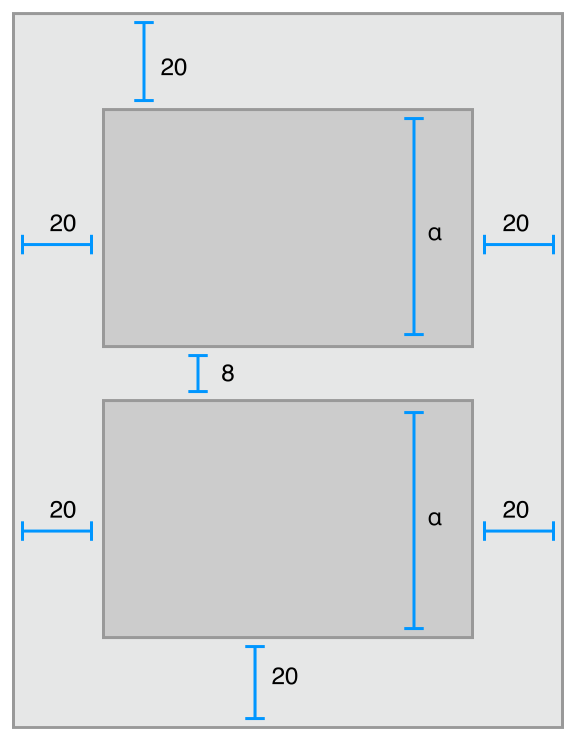
The logic used to design a set of constraints to create specific behaviors is very different from the logic used to write procedural or object-oriented code. Fortunately, mastering Auto Layout is no different from mastering any other programming task. There are two basic steps: First you need to understand the logic behind constraint-based layouts, and then you need to learn the API. You’ve successfully performed these steps when learning other programming tasks. Auto Layout is no exception.
특정 동작을 생성하기 위해 일련의 제약 조건을 설계하는 데 사용되는 논리는 절차적 또는 객체 지향 코드를 작성하는 데 사용되는 논리와 매우 다르다. 다행스럽게도 오토 레이아웃을 마스터하는 것은 다른 프로그래밍 작업을 마스터하는 것과 다르지 않다. 두 가지 기본 단계가 있습니다. 먼저 제약 조건 기반 레이아웃의 논리를 이해하고 API를 배워야 한다. 다른 프로그래밍 작업을 배울 때 이러한 단계를 성공적으로 수행했다. 오토 레이아웃도 예외는 아니다.
The rest of this guide is designed to help ease your transition to Auto Layout. The Auto Layout Without Constraints chapter describes a high-level abstraction that simplifies the creation of Auto Layout backed user interfaces. The Anatomy of a Constraint chapter provides the background theory you need to understand to successfully interact with Auto Layout on your own. Working with Constraints in Interface Builder describes the tools for designing Auto Layout, and the Programmatically Creating Constraints and Auto Layout Cookbook chapters describe the API in detail. Finally, the Auto Layout Cookbook presents a wide range of sample layouts of varying levels of complexity, you can study and use in your own projects, and Debugging Auto Layout offers advice and tools for fixing things if anything goes wrong.
이 가이드의 나머지 부분은 오토 레이아웃으로 쉽게 전환하는 데 도움이 되도록 설계되었다. Auto Layout Without Constraints 장에서는 오토 레이아웃 기반의 유저 인터페이스 생성을 단순화하는 높은 수준의 추상화에 대해 설명한다. The Anatomy of a Constraint 장은 오토 레이아웃과 성공적으로 상호 작용하기 위해 이해해야 하는 배경 이론을 제공한다. Working with Constraints in Interface Builder에서는 오토 레이아웃을 디자인하는 도구를 설명하고, Programmatically Creating Constraints 및 Auto Layout Cookbook 장에서는 API에 대해 자세히 설명한다. 마지막으로 Auto Layout Cookbook은 다양한 복잡성 수준의 광범위한 샘플 레이아웃을 제공하므로 자신의 프로젝트에서 연구하고 사용할 수 있으며 Debugging Auto Layout은 문제가 발생할 경우 문제를 해결하기 위한 조언과 도구를 제공한다.